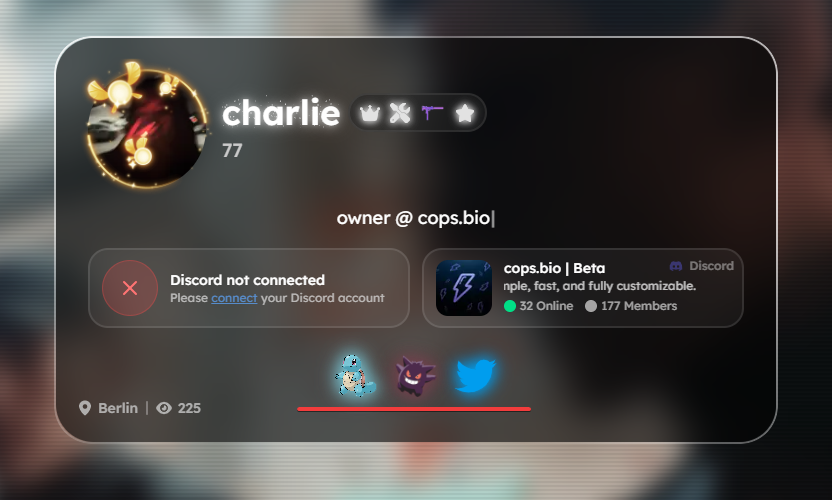
We offer a large selection of predefined social media platforms where you simply need to enter your username, and it will display the link on your profile page.
If a platform is not available, you can easily create it yourself using the Custom Website option.
Setup a Link
First, you need to go to the Links page on the cops.bio Dashboard. There you will be greeted with the following screen.
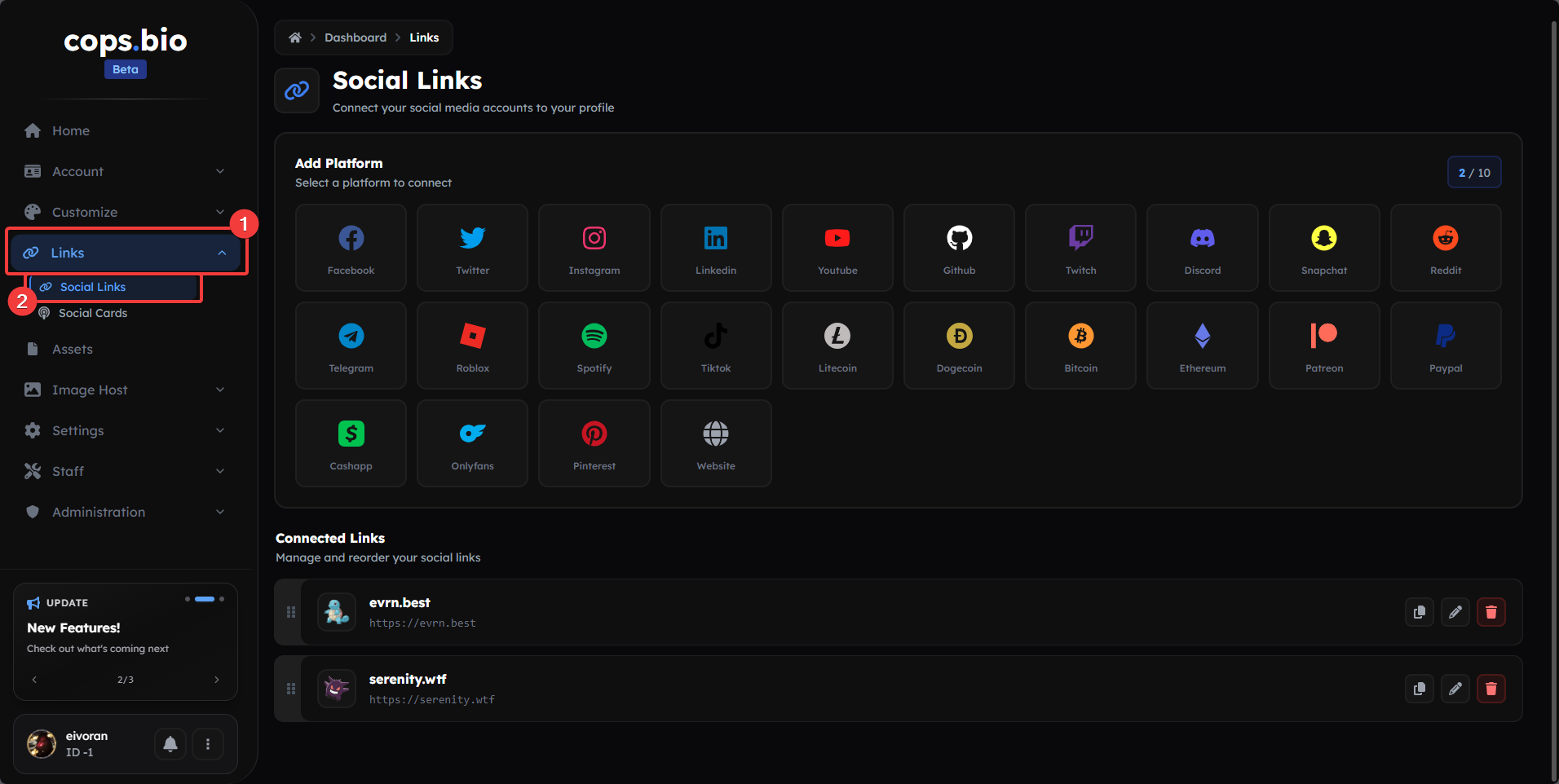 Links Page on cops.bio
Now click on the platform you want to display on your profile page. In this example, we'll use Twitter.
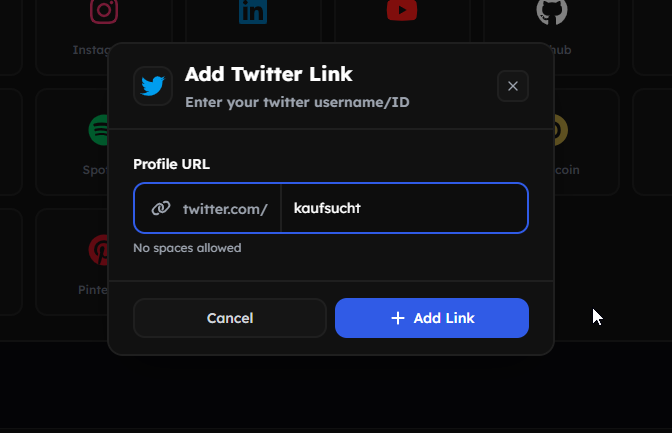 Links Setup Modal
Simply click on 'Add Link' and within seconds you will have added your first social media platform to your page!
Edit a Link
Of course, there are several other options you can edit for this link. These include the link icon size, the link tooltips (the small info text you see when hovering over a link on your profile page), and a glow effect on these icons.
To edit a link and change its color or size, you first need to scroll down on the Links page until you reach the boxes where your already added links are displayed.
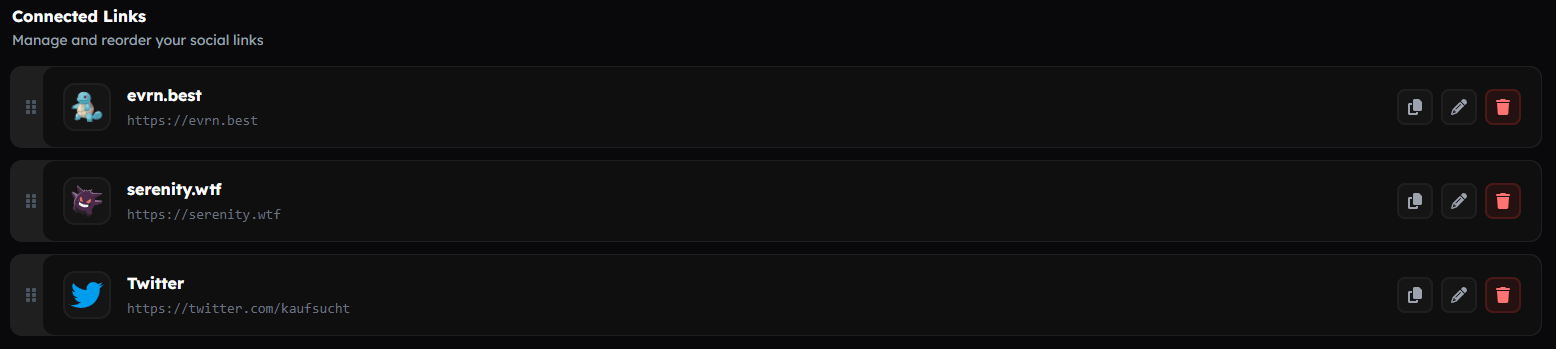
Click on the pencil icon on the right side, and you will be greeted with a modal where you can easily change the previously mentioned settings.
Keep in mind that this only changes the individual social icon itself. You cannot change all icons at once with this option.
Show/Hide Tooltips & Enable/Disable Icon Glow
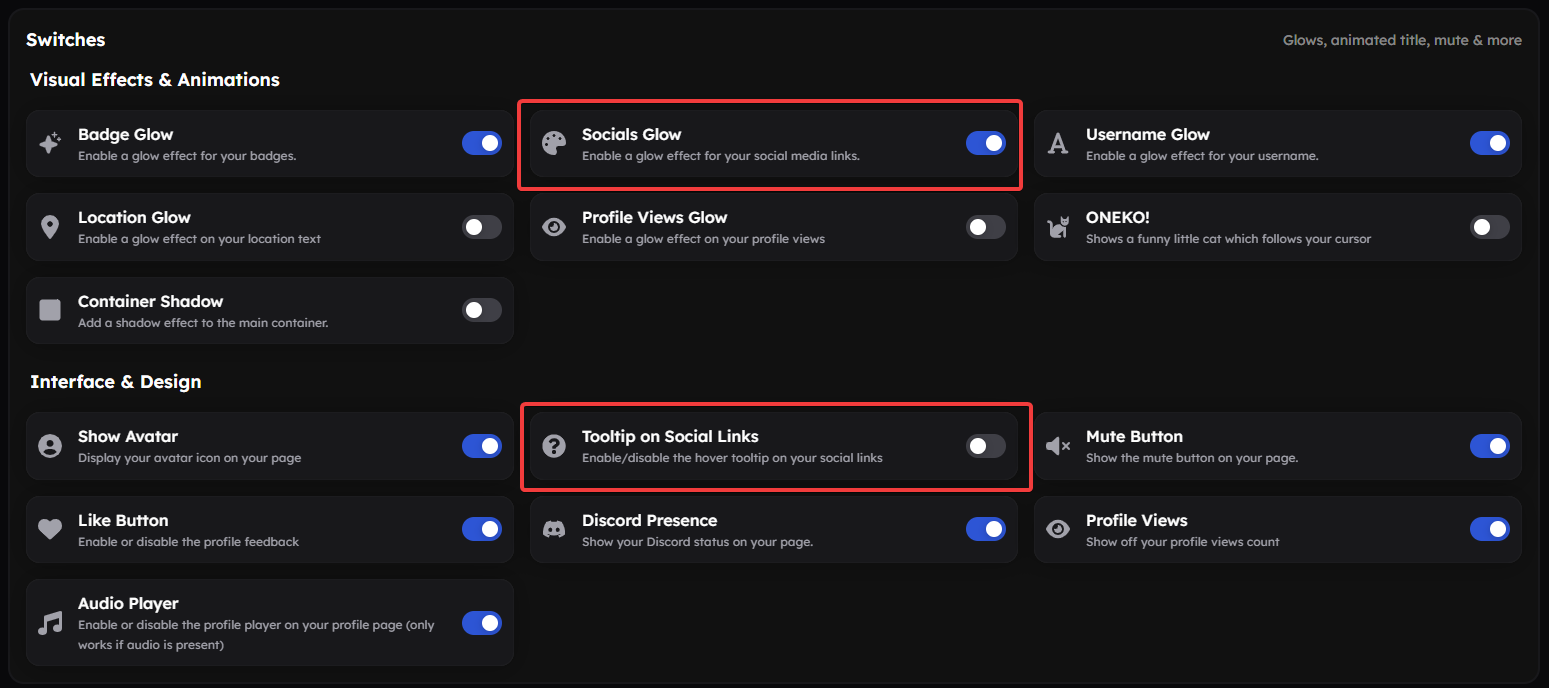
If you want to show or hide tooltips on hover, or enable or disable the glow effect, you need to go to the Switches section on the Customize Page.
Custom Links
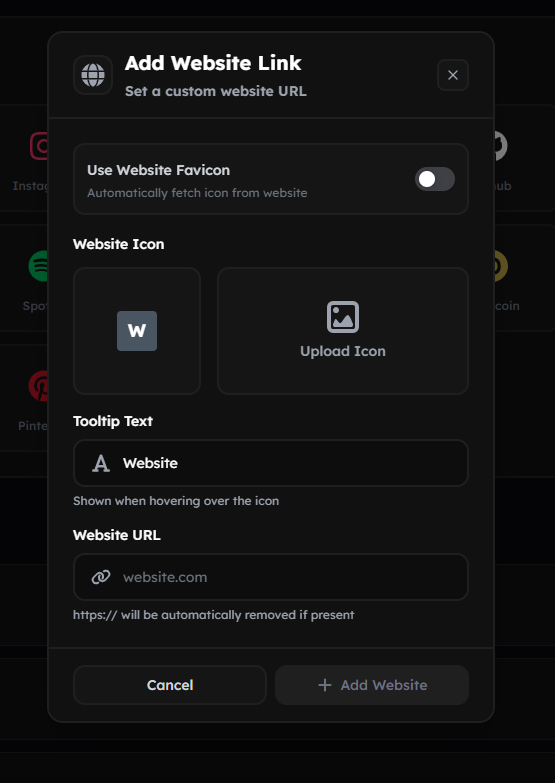
Here we come to a more interesting part. If a platform doesn't exist that you want to display, you can create it yourself with Custom Website Links!
To do this, you need to click on the gray globe icon among all the platforms, and you will get a slightly modified modal. There you can automatically set the favicon (in most cases the logo of the respective website), or you can upload your own icon for it!
If you want to use animated icons, .GIF files will not work. However, you can use animated .webp files. A list of converters can be found on the Converter Page.
Final Result
You can see your added social links on your profile page, usually at the bottom of your container.