Change your email address
Need to use a different email? No problem — here’s the quick and safe way to do it.
- Click below or go directly to: https://cops.bio/dashboard/settings
- Find the Change Email button in the account section.
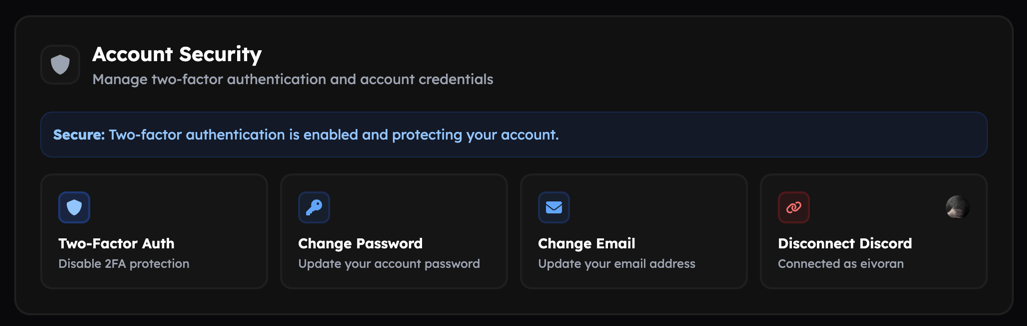 Change Email button
Clicking the button opens a small modal where you can enter your new email and confirm your identity by typing your current password.
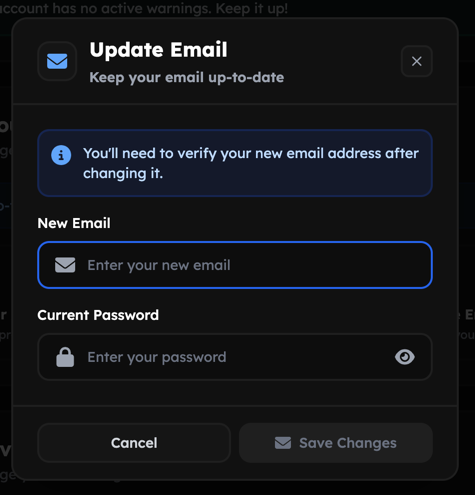 Change Email modal
Quick steps
- Open your Dashboard Settings: https://cops.bio/dashboard/settings.
- Click Change Email.
- Type your new email address into the modal.
- Enter your current password (this confirms it’s really you).
- Submit — then check the inbox for the new email address.
- Click the verification link in the message to complete the change.
Why we ask for your password
For security we require your current password when changing the email so someone who has access to your open browser can’t swap your contact details.
After you change your email we’ll send a verification email to the new address. Some features (for example asset uploads) are temporarily disabled until you verify the new email. Open the verification email and click the link to restore full access.
Troubleshooting
Didn’t get the verification email?
- Wait a few minutes — delivery sometimes lags.
- Check your spam or junk folder.
- Make sure you typed the correct email address in the modal.
- If there’s a Resend verification button on the settings page, try that.
Still not seeing the email:
- Add no-reply@cops.bio to your contacts or safe-senders list.
- If it still doesn’t arrive, contact support and include the new email address and the approximate time you tried to change it.
Tips & small notes
- Double-check the new address before you submit — verification links expire.
- If you used a disposable or shared email, consider switching to a personal inbox you control to avoid future lockouts.