Change your password
Need to update your password? No worries — it’s quick and secure. Below is the easiest way to do it.
- Open your Dashboard: https://cops.bio/dashboard/settings
- Look for the Change Password button in the account section.
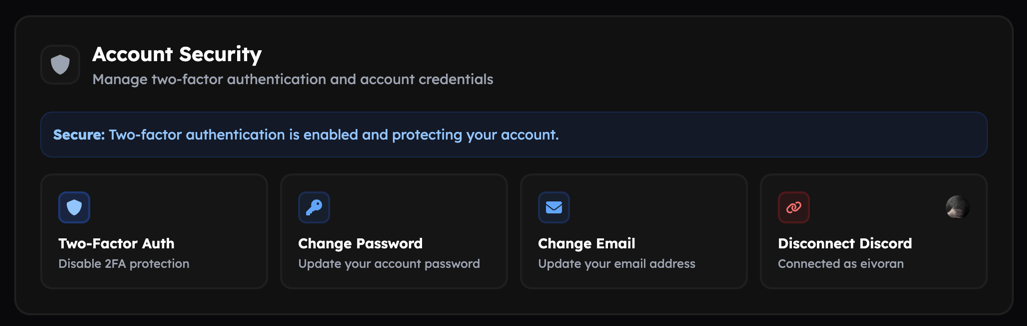 Change Password button
Clicking the button opens a small modal. You’ll usually see three fields: your current password, your new password, and a confirmation for the new password.
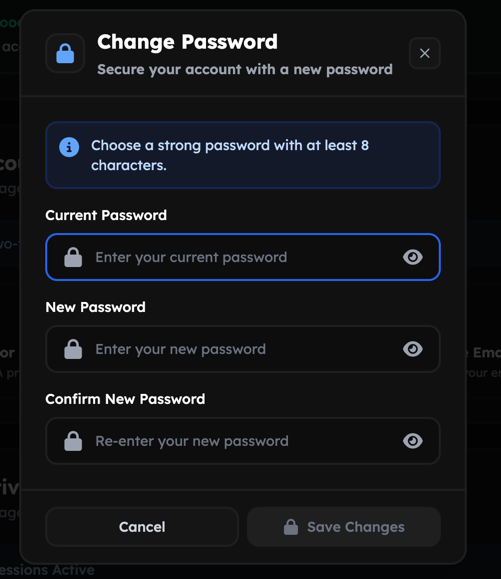 Change Password modal
Quick steps
- Go to Dashboard Settings: https://cops.bio/dashboard/settings.
- Click Change Password.
- Type your current password (this proves it’s really you).
- Choose a new password and type it again in the confirmation field.
- Submit the form.
- You’ll get a confirmation that your password was changed — use the new password next time you sign in.
Why we ask for your current password
This prevents someone who might have temporary access to your browser from changing your password without your knowledge.
If you’re signed in on multiple devices, you may be asked to sign in again on some of them after the change. That’s normal — it helps keep your account secure.
Troubleshooting
Forgot your current password?
- Use the Forgot password link on the sign-in page to reset via your email address.
Still having trouble:
- Try clearing your browser cache and try again.
- If the issue persists, contact support and include the time you attempted the change and any error message you saw.