cops.biocops.bio Documentation
Home
  • Introduction
  • Share your Profile
  • Connect Discord
  • Sync Badges
  • Change Email
  • Change Password
  • Links
  • Integrations
  • Upload Assets
  • Verified
  • Premium
  • Affiliate
  • Code Redemption
  • Converters
  • Layouts
  • Domains
  • Troubleshooting
Policies
cops.bio

cops.bio

The modern solution for your personal biolink website. Simple, fast, and fully customizable.

Documentation

  • Getting Started
  • Account
  • Features

Resources

  • cops.bio
  • Terms
  • Privacy

Join our community

Connect with other creators and stay updated with the latest features.

Discord Server

© 2026 cops.bio. All rights reserved.

TermsPrivacyCookies
HomeFeaturesIntegrations

Start with Integrations

Learn how to integrate specific social media platforms directly on your profile.

What are Social Integrations?

Social integrations are similar to social links, but with integrations, you can display specific information from each platform directly on your profile.
For example, you could simply link your Roblox account as a social link. With integrations, however, you could show additional Roblox information on your profile card, such as your follower count, friends count, or even your Roblox avatar icon.

Setup an Integration

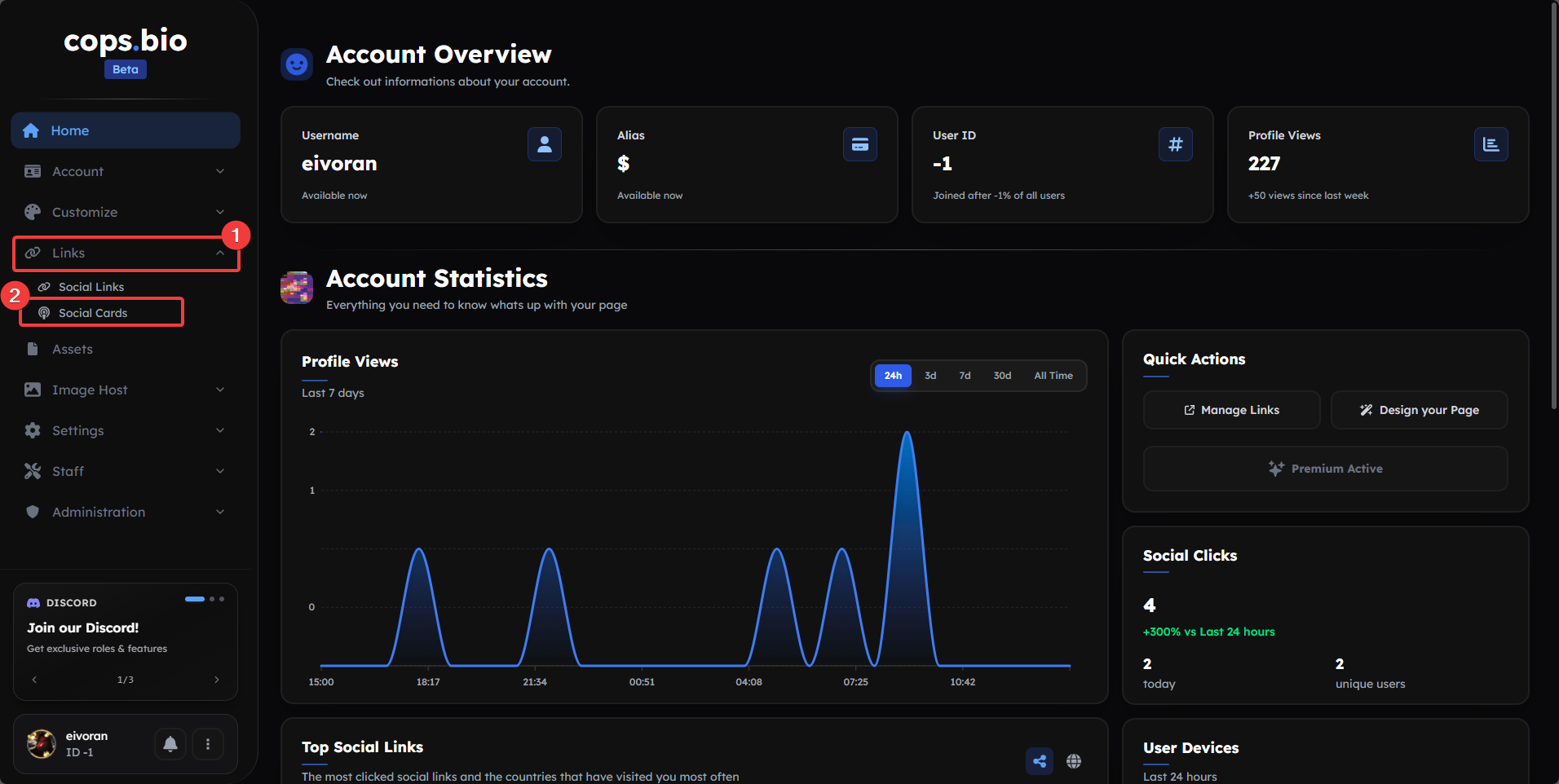
To add an integration to your profile page, first go to the Social Integrations page.
You can see how to navigate there using the navbar in the screenshot below.
blank

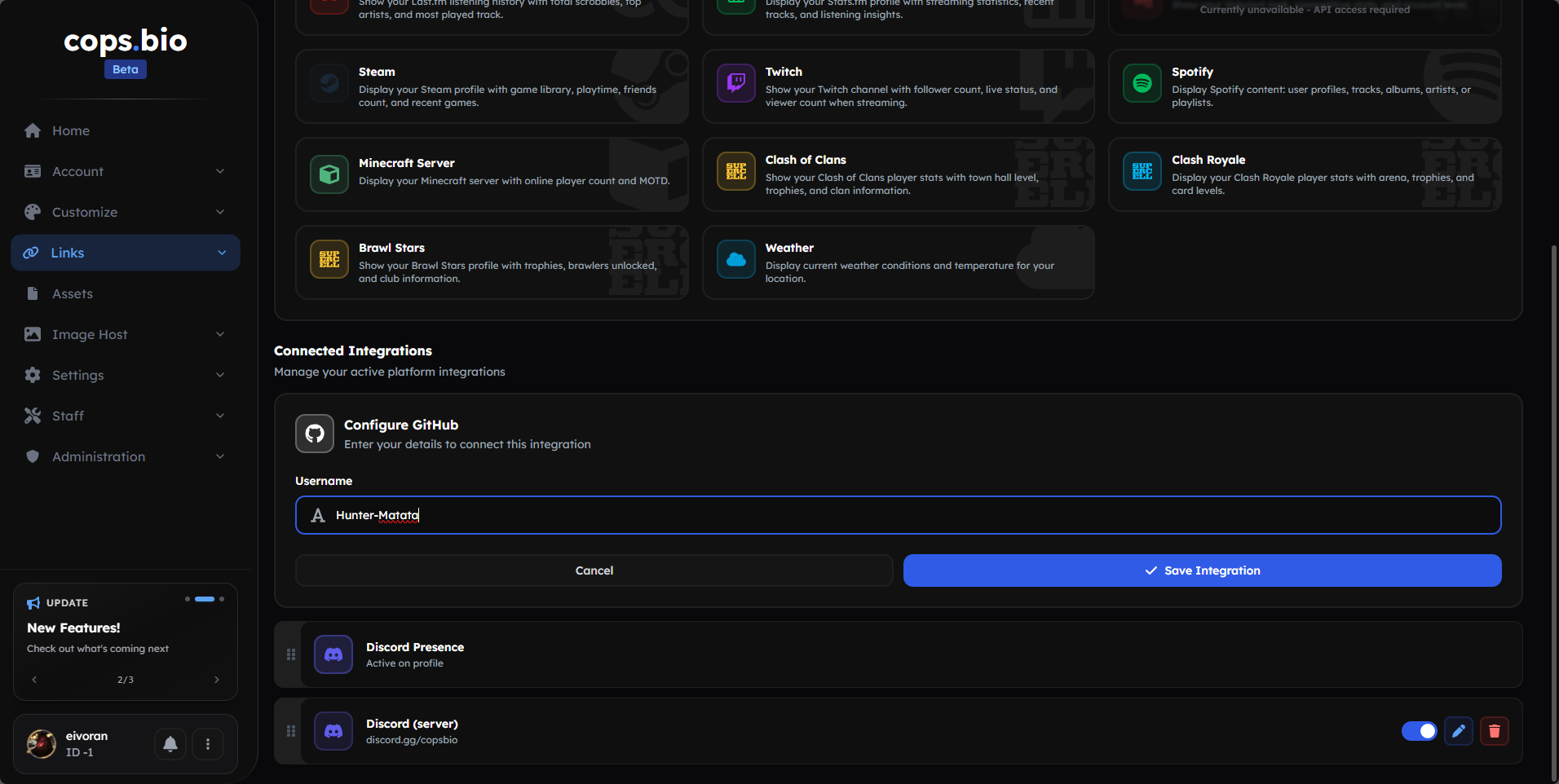
Next, select the integration you want to display on your profile. In this example, we’ll use GitHub. After selecting it, you’ll see a container further down the page asking you to enter your username.
blank

Save the integration, and you’re good to go! You can now see this integration displayed on your profile page.

All profile layouts have certain limits on how many integrations can be displayed. You can find more details by clicking here.
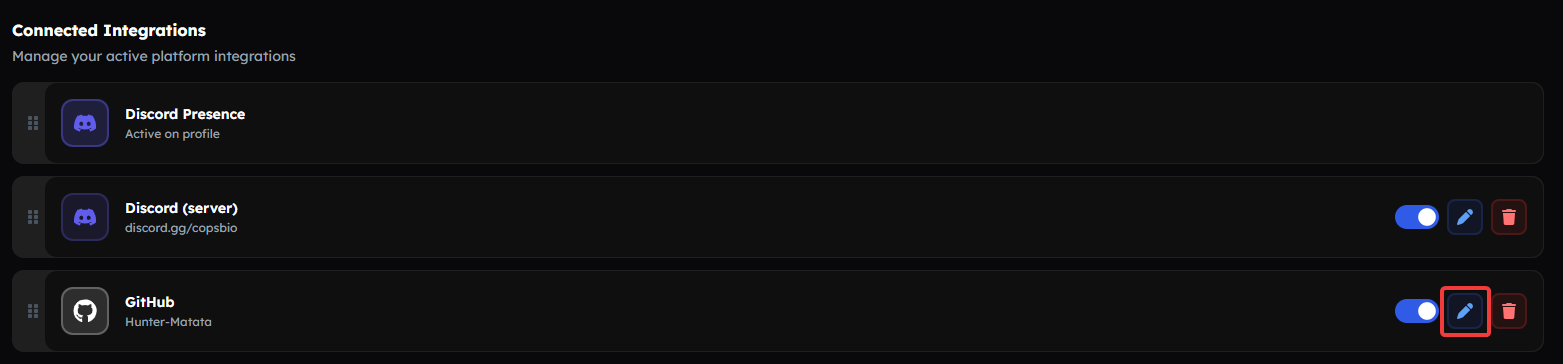
## How Can I Edit My Integrations? Now that you know how to create an integration, you can also edit it. If you scroll down to the lower section of the page again, you’ll find the option to edit the value (in our example, the username) by clicking the pencil icon. You can also use the switch to hide specific integrations temporarily if you don’t want them to appear on your profile.

blank

PreviousLinks
NextUpload Assets